Read the steps here; do the work in your own AI tool.
Try the provided example, then adapt it to your needs.
Save your result and return for another lesson whenever you like.
Bring a computer and an AI tool you can sign in to, such as ChatGPT. Basic exercises do not require Gmail, Drive, or Notion connections.
Choose a lesson
You do not need to finish every lesson or follow this order. Pick a useful task, skip what you know, and explore further when ready.
Not sure where to start? New to AI? Start with turning a message into a to-do list. Already using it? Jump to Gmail, spending analysis, or building a webpage.
A connector lets AI read material from a service you authorize, saving manual copying. Connect inside your AI tool; this lesson website does not connect your accounts.
Find the service in the plugin directory
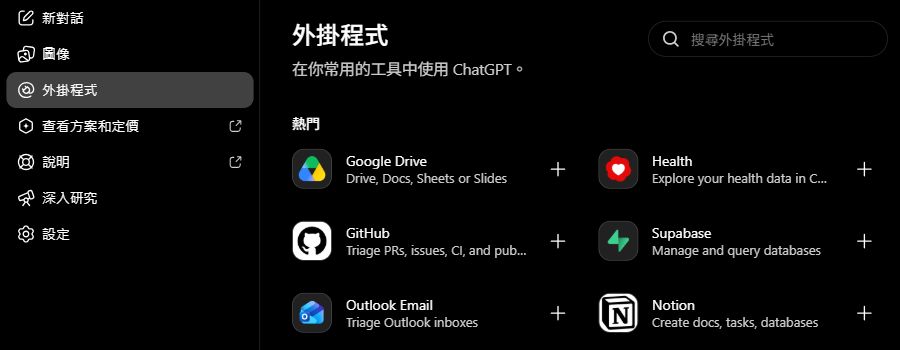
Select “Plugins” on the left and search at the top right. Check the service and developer: a different product with Gmail in its name is not the Gmail connector. If unavailable, use the text exercise first.
This is the public Google Drive listing. “Install plugin” leads to sign-in; this image does not show a completed connection. After signing in, check the account and requested access on your own screen.
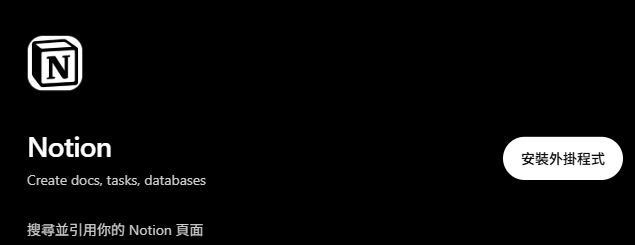
This is the public Notion listing. “Install plugin” leads to sign-in; no workspace or page access has been selected here. Follow your own screen and choose only the material for this exercise.
Real screenshots · 2026-10-29 · Traditional Chinese interface, with English instructions. The screen may vary by account or version. Examples contain fictional data.
In ChatGPT, look for Plugins or the connected-apps entry and search for Gmail, Google Drive, or Notion. If your screen differs, consult the official walkthrough below.
Follow the connection prompts, check which account you are signing in to, and review the requested access.
Select the service in your conversation and specify the email or document to read. Open the original to check the result.
Availability depends on your plan and workspace. If you cannot find or connect the service, complete the text exercise first and return to connections later.
Open your usual AI tool in another browser tab and sign in. Keep this lesson open so you can return to it.
Copy the practice text and request below, paste both into the AI chat, and send them.
Read the answer, then send: “Make this one friendly reminder I can send to a friend.”
Check that the shorter version keeps the 11/18 18:00 reply deadline. Copy your favorite version to notes or save it in this lesson’s record area.
Practice material
Fictional teaching notice A1
Activity date: 2026/11/21.
Reply whether you will attend by 2026/11/18 18:00 (Asia/Taipei).
The meeting location has not been announced.
Request for AI
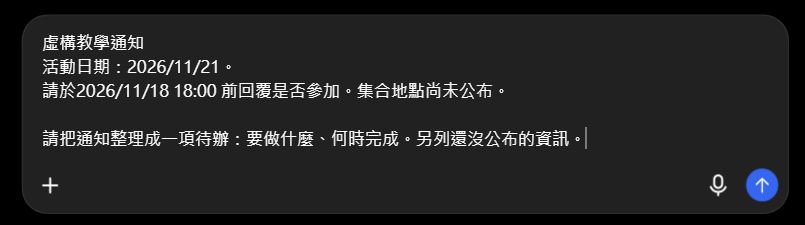
Turn this notice into one to-do: what to do and by when. List any details that have not been announced.
Use “Copy material and request” above, switch to ChatGPT, click the message box and press Ctrl+V (Mac: ⌘V). Send with the upward arrow at the bottom right. The image uses Lesson 1; paste this lesson’s material instead.
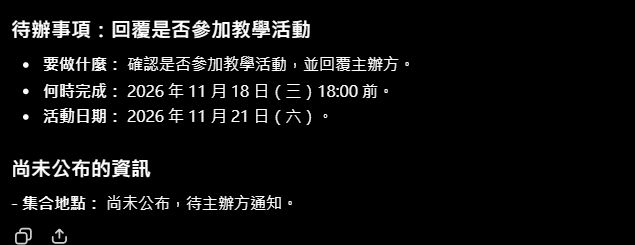
This actual response preserves the November 18, 18:00 deadline and the unknown meeting location. Check these facts before using the response. The overlapping-squares icon at the bottom left copies it.
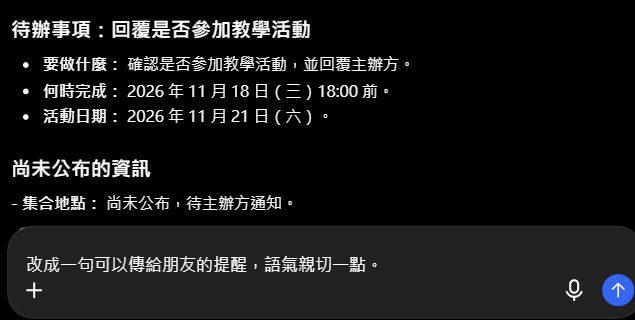
Keep the same conversation. Type what you want changed in the box below the response, then send. The unsent draft shown asks: “Make this a friendly, one-sentence reminder I can send to a friend.”
Real screenshots · 2026-10-29 · Traditional Chinese interface, with English instructions. The screen may vary by account or version. Examples contain fictional data.
After trying: compare a possible result
The reply deadline remains 11/18 18:00; the activity is on 11/21. A friendly version: “Remember to reply by 6 pm on 11/18 about joining the 11/21 activity! We’re waiting for the organizer to announce the meeting location.”
Check these parts of your result
The reply deadline is 11/18 18:00, not the activity date of 11/21.
The short version keeps the action and does not invent a meeting location.
My result looks different. What now?
The wording does not have to match. Check for missing information first. If something is wrong, tell AI what it should be and ask for a correction, including the original material.
2. Now make it work for you
Try a different situation yourself
Use the same method with the situation below.
New fictional source A2: reading activity on 2026/12/03; choose a topic by 12/01 12:00 (Asia/Taipei); classroom undecided. In a new chat, write the action and unknown, and save a second record.
After trying: compare a possible result
Choose a topic by 12/01 12:00; source A2; classroom to confirm; activity on 12/03. Actually save and reopen it; reading this answer alone is not hands-on completion.
3. Save your work and continue later
Save the AI response in your own notes and add one sentence about what you changed. You can also use the optional record below.
Write and download my result (optional)
This page does not save automatically. Download your filled-in records before closing or changing language. The lesson download does not include your own answers.
Paste the data and request below into AI to get your three-line reminder.
Paste the second-round data and request into the same chat to change the download deadline to 19:00.
Compare the versions: download is one hour earlier, while the meeting stays at 09:00.
Save the updated version you want to use. You can also ask to turn it into a checklist.
Practice material
Fictional B0; time zone Asia/Taipei: download tickets by 2026/11/19 20:00; meet at Cloudbank Station on 2026/11/21 at 09:00; check-in time not provided.
Request for AI
Organize these departure details into three lines: ticket download, meeting, and check-in. Write “to confirm” for anything not provided.
Use “Copy material and request” above, switch to ChatGPT, click the message box and press Ctrl+V (Mac: ⌘V). Send with the upward arrow at the bottom right. The image uses Lesson 1; paste this lesson’s material instead.
This actual response preserves the November 18, 18:00 deadline and the unknown meeting location. Check these facts before using the response. The overlapping-squares icon at the bottom left copies it.
Keep the same conversation. Type what you want changed in the box below the response, then send. The unsent draft shown asks: “Make this a friendly, one-sentence reminder I can send to a friend.”
Real screenshots · 2026-10-29 · Traditional Chinese interface, with English instructions. The screen may vary by account or version. Examples contain fictional data.
After trying: compare a possible result
The first version has a download deadline of 11/19 20:00; the update changes it to 19:00. Meeting remains 11/21 09:00 at Cloudbank Station; check-in is to confirm.
Check these parts of your result
The download deadline moves from 20:00 to 19:00, one hour earlier.
Meeting remains 11/21 09:00; check-in remains to confirm.
My result looks different. What now?
The wording does not have to match. Check for missing information first. If something is wrong, tell AI what it should be and ask for a correction, including the original material.
2. Now make it work for you
Update: the organizer changes the ticket download deadline to 2026/11/19 19:00 (Asia/Taipei). Everything else stays the same.
Update the three-line reminder, changing only the download deadline to 19:00.
After trying: compare a possible result
Download tickets by 11/19 19:00. Meet on 11/21 at 09:00 at Cloudbank Station. Check-in: to confirm.
Try a different situation yourself
Use the same method with the situation below.
New fictional R0: report due 2026/12/04 16:00; discussion 12/06 10:00; room undecided. R1: the owner confirms the report deadline changes to 15:00; everything else stays the same. Time zone Asia/Taipei. Make a before/after comparison yourself.
Save the AI response in your own notes and add one sentence about what you changed. You can also use the optional record below.
Write and download my result (optional)
This page does not save automatically. Download your filled-in records before closing or changing language. The lesson download does not include your own answers.
Identify the conflict without choosing an unsupported deadline.
Fictional C1: contact A says download by 2026/11/19 19:00. C2: contact B says 18:30 the same day. Neither states which notice is replaced or who has authority. Time zone Asia/Taipei.
List the conflict, common facts, and who should confirm the answer. Do not treat earlier or newer as a confirmed answer.
After trying: compare a possible result
Shared fact: download is due on 2026/11/19. Conflict: 19:00 versus 18:30, a 30-minute difference; the valid deadline is unconfirmed. Ask the organizer's decision owner which notice is valid and whether it replaces the other. Do not claim 18:30 is officially adopted.
Check your understanding (optional)What should I know first?
Choose the guided steps, a new practice, or a deeper challenge at your own pace.
Paste the four messages and request into AI to get a table.
Look back at organizer message B: the meeting is 09:00; E’s 08:30 is a suggestion. Check that the table keeps them separate.
Then send: “Make this three lines I can read before leaving, followed by one question for the organizer.”
Check that you can quickly find the meeting time and ticket deadline, then save your preferred version.
Practice material
Fictional data; time zone Asia/Taipei.
D | issued 10/20: meet at Cloudbank Station on 2026/11/21 at 10:00.
B | organizer approved 10/25: replaces D; meet at Cloudbank Station on 2026/11/21 at 09:00; download tickets by 11/19 19:00; check-in undecided.
E | discussion draft 10/28: suggests meeting on 11/21 at 08:30; not approved.
F | shuttle note: departs 11/21 at 09:30; approval status not stated.
Request for AI
Turn these four messages into a table: action / time / note. Put organizer-confirmed arrangements first, then suggestions and questions.
Use “Copy material and request” above, switch to ChatGPT, click the message box and press Ctrl+V (Mac: ⌘V). Send with the upward arrow at the bottom right. The image uses Lesson 1; paste this lesson’s material instead.
This actual response preserves the November 18, 18:00 deadline and the unknown meeting location. Check these facts before using the response. The overlapping-squares icon at the bottom left copies it.
Keep the same conversation. Type what you want changed in the box below the response, then send. The unsent draft shown asks: “Make this a friendly, one-sentence reminder I can send to a friend.”
Real screenshots · 2026-10-29 · Traditional Chinese interface, with English instructions. The screen may vary by account or version. Examples contain fictional data.
After trying: compare a possible result
Meet on 11/21 at 09:00 at Cloudbank Station; download tickets by 11/19 19:00. 08:30 is only a draft suggestion. You can ask the organizer about the 09:30 shuttle and check-in time.
Check these parts of your result
Use the organizer-confirmed 09:00 meeting; 08:30 remains a suggestion.
09:30 is a shuttle departure note, not the meeting time.
My result looks different. What now?
The wording does not have to match. Check for missing information first. If something is wrong, tell AI what it should be and ask for a correction, including the original material.
2. Now make it work for you
Try a different situation yourself
Use the same method with the situation below.
Fictional P: approved 10/26, registration limit 20 people. Q: draft 10/29 suggests 30, unapproved. R: contact message 10/28 says 'limit 25' without stating whether it replaces P. List the approved value and unresolved issues.
After trying: compare a possible result
Known approved value: 20 (P). The 30-person value is a draft. The 25-person message differs from P, but authority and replacement are unclear. Ask the decision owner; do not assert that 25 or 30 is the final valid limit.
3. Save your work and continue later
Save the AI response in your own notes and add one sentence about what you changed. You can also use the optional record below.
Write and download my result (optional)
This page does not save automatically. Download your filled-in records before closing or changing language. The lesson download does not include your own answers.
Can today's fee be confirmed? State the limitations of both documents and the evidence needed.
After trying: compare a possible result
The current fee cannot be confirmed. V1 expired; V2 is newer but unapproved. Obtain the current approved fee notice, effective dates, and publisher confirmation. Neither 300 nor 350 can be presented as confirmed.
Check your understanding (optional)What should I know first?
Choose the guided steps, a new practice, or a deeper challenge at your own pace.
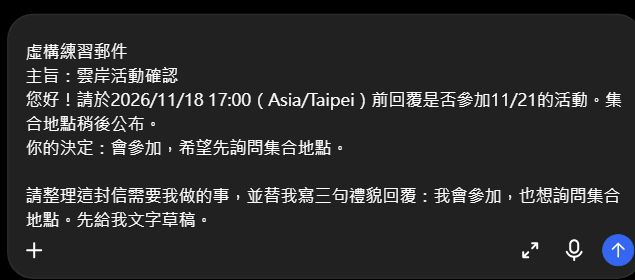
Paste the sample email and request into AI. This step does not need a Gmail connection.
Read the draft and check that it says you will attend and asks about the location.
Then send: “Make it friendlier and just two sentences, without sounding too formal.”
Save the version you like. This reply text has not been sent. Open the optional connection exercise to practice reading a real message.
Practice material
Fictional practice email
Subject: Cloudbank activity confirmation
Hello! Please reply by 2026/11/18 17:00 (Asia/Taipei) to say whether you will attend the activity on 11/21. The meeting location will be announced later.
Your decision: you will attend and would like to ask about the location.
Request for AI
List what I need to do in this email, then write a polite three-sentence reply: I will attend and would like to ask about the meeting location. Give me a text draft first.
After copying, paste and send in a new AI conversation. Keep this lesson tab open so you can return for the next step.
This lesson’s email, pasted into ChatGPT
In a new ChatGPT conversation, click the message box and press Ctrl+V (Mac: ⌘V). Check that both the material and request are present, then send with the upward arrow at the bottom right. Scroll inside the box to read long drafts.
View larger image ↗Need help with the controls? See the Lesson 1 example1. Open ChatGPT and find the message box
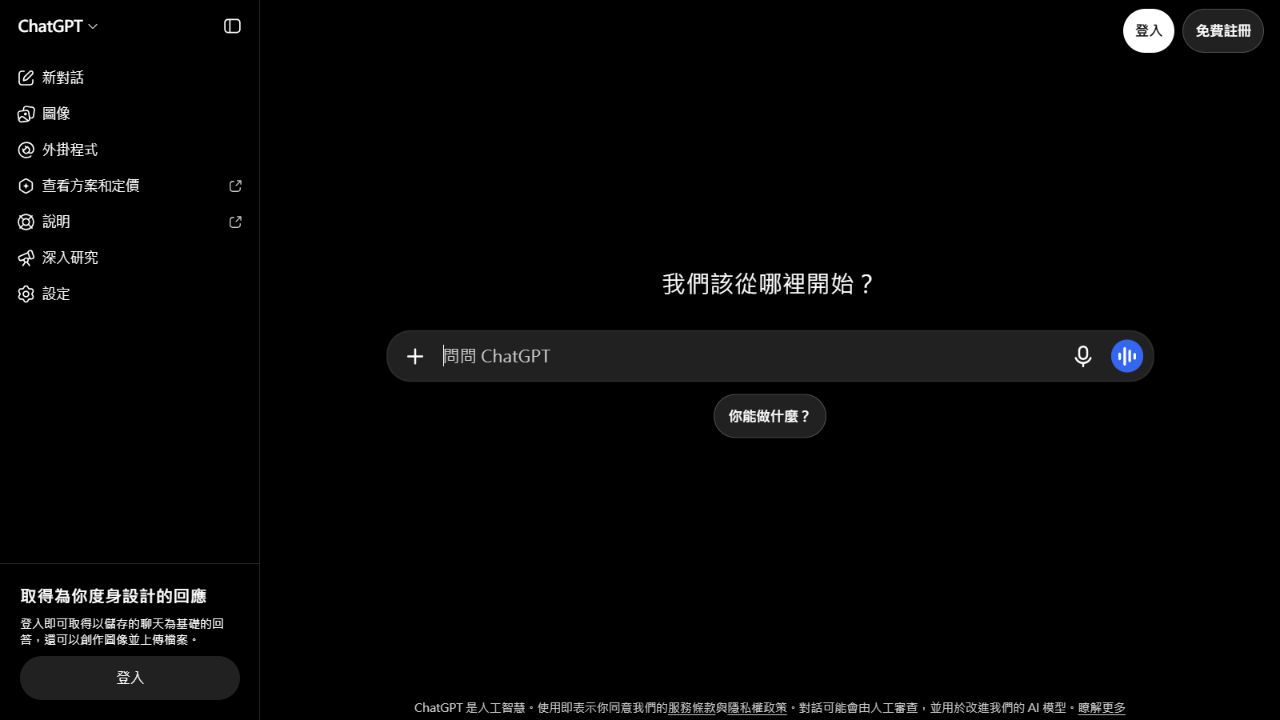
This is the signed-out ChatGPT home screen. The central “Ask ChatGPT” box accepts your message; “New chat” on the left starts a different topic.
Use “Copy material and request” above, switch to ChatGPT, click the message box and press Ctrl+V (Mac: ⌘V). Send with the upward arrow at the bottom right. The image uses Lesson 1; paste this lesson’s material instead.
This actual response preserves the November 18, 18:00 deadline and the unknown meeting location. Check these facts before using the response. The overlapping-squares icon at the bottom left copies it.
Keep the same conversation. Type what you want changed in the box below the response, then send. The unsent draft shown asks: “Make this a friendly, one-sentence reminder I can send to a friend.”
Real screenshots · 2026-10-29 · Traditional Chinese interface, with English instructions. The screen may vary by account or version. Examples contain fictional data.
Real screenshots · 2026-10-29 · Traditional Chinese interface, with English instructions. The screen may vary by account or version. Examples contain fictional data.
After trying: compare a possible result
Action: reply by 11/18 17:00. A possible draft: “Hello, I’ll be attending on 11/21! When will the meeting location be announced? Thank you.” Wording can vary as long as it expresses your decision.
Check these parts of your result
The reply says you will attend and asks about the meeting location.
The activity is 11/21; the reply is due by 11/18 17:00.
The draft has not been sent; you can adjust its tone first.
My result looks different. What now?
The wording does not have to match. Check for missing information first. If something is wrong, tell AI what it should be and ask for a correction, including the original material.
2. Now make it work for you
Try a different situation yourself
Use the same method with the situation below.
Try a different fictional email: “Please confirm by 11/05 12:00 whether you can collect your books. We will send the pickup location later.” You can collect them. Write your own short request for help replying.
After trying: compare a possible result
For example: “Hello, I can collect the books. Please let me know the pickup location. Thank you!” Remember to reply by 11/05 12:00.
3. Save your work and continue later
Save the AI response in your own notes and add one sentence about what you changed. You can also use the optional record below.
Write and download my result (optional)
This page does not save automatically. Download your filled-in records before closing or changing language. The lesson download does not include your own answers.
Select “Plugins” on the left and search at the top right. Check the service and developer: a different product with Gmail in its name is not the Gmail connector. If unavailable, use the text exercise first.
Real screenshots · 2026-10-29 · Traditional Chinese interface, with English instructions. The screen may vary by account or version. Examples contain fictional data.
Look for available Plugins or connected apps in your AI tool, find Gmail, and follow the connection flow for your practice account. Review the requested access. Availability depends on the tool, plan, and workspace.
Replace the subject and date in the request with your details. Select the Gmail plugin in the conversation and send the request.
Open the original-message link AI returns to check that it read the intended email, then review the reply.
If the service is unavailable or cannot read the email, return to pasted-text practice. Text organization alone does not establish a connection.
Prepare a practice message you may use, with no personal or confidential information. You can send the fictional email to yourself in a practice account, using a distinctive subject such as “AI practice – activity confirmation.” Note the actual sending date.
Use Gmail to read this practice email: subject [enter the exact subject], sending date [enter the actual date]. If several match, list them for me to choose. Read it, summarize my action, and write a reply in this chat only. Do not send it or create a Gmail draft.
After trying: compare a possible result
You can open the specified original message, and AI has read its content and produced a chat draft. The email has not been sent.
Try a more involved task
Separate a partial reply from a schedule update.
Fictional thread: J1 organizer says meet 2026/11/07 09:00 and asks for attendance and meal choice. J2 organizer changes meeting to 10:00; all else unchanged. J3 learner replies only 'I will attend.' Meal choice remains unanswered. Time zone Asia/Taipei.
List the current arrangement, completed reply, and remaining reply. Draft a question without guessing the meal choice.
After trying: compare a possible result
Meet 11/07 10:00 (J2); attendance answered (J3); meal unanswered. Attendance alone does not complete everything. Ask the learner 'Which meal would you like?' Do not fill in or send a choice before receiving it.
Check your understanding (optional)What should I know first?
Choose the guided steps, a new practice, or a deeper challenge at your own pace.
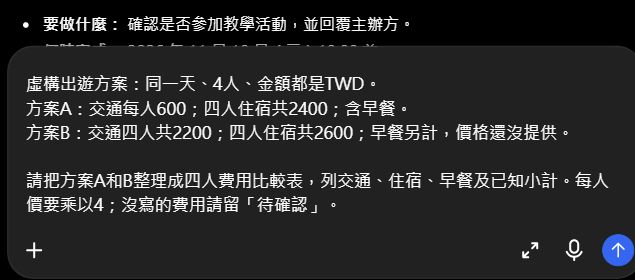
Paste both excerpts and the request into AI to get a comparison table.
Check that A’s transport is 600×4 and B’s breakfast is still to confirm.
Then send: “Explain the differences in three sentences for my travel companions.”
Save the table or short explanation. Try the optional connection exercise to read your own Drive documents directly.
Practice material
Fictional trip options for the same day, 4 people, all prices in TWD.
A: transport 600 per person; accommodation 2400 for four; breakfast included.
B: transport 2200 for four; accommodation 2600 for four; breakfast extra, price not yet provided.
Request for AI
Make a four-person cost table for A and B: transport, accommodation, breakfast, and known subtotal. Multiply per-person prices by 4; mark missing prices “to confirm.”
After copying, paste and send in a new AI conversation. Keep this lesson tab open so you can return for the next step.
This lesson’s two plans, pasted into ChatGPT
In a new ChatGPT conversation, click the message box and press Ctrl+V (Mac: ⌘V). Check that both the material and request are present, then send with the upward arrow at the bottom right. Scroll inside the box to read long drafts.
View larger image ↗Need help with the controls? See the Lesson 1 example1. Open ChatGPT and find the message box
This is the signed-out ChatGPT home screen. The central “Ask ChatGPT” box accepts your message; “New chat” on the left starts a different topic.
Use “Copy material and request” above, switch to ChatGPT, click the message box and press Ctrl+V (Mac: ⌘V). Send with the upward arrow at the bottom right. The image uses Lesson 1; paste this lesson’s material instead.
This actual response preserves the November 18, 18:00 deadline and the unknown meeting location. Check these facts before using the response. The overlapping-squares icon at the bottom left copies it.
Keep the same conversation. Type what you want changed in the box below the response, then send. The unsent draft shown asks: “Make this a friendly, one-sentence reminder I can send to a friend.”
Real screenshots · 2026-10-29 · Traditional Chinese interface, with English instructions. The screen may vary by account or version. Examples contain fictional data.
Real screenshots · 2026-10-29 · Traditional Chinese interface, with English instructions. The screen may vary by account or version. Examples contain fictional data.
After trying: compare a possible result
A: transport 2400 + accommodation 2400 = 4800 TWD including breakfast. B: transport 2200 + accommodation 2600 = known subtotal 4800 TWD, plus breakfast. A short explanation: “Both currently list 4800 TWD. A includes breakfast, but B charges extra. Let’s ask about B’s breakfast price before deciding.”
Check these parts of your result
A’s transport is 600×4 = 2400; B’s 2200 already covers four people.
Both known subtotals are 4800 TWD; B still needs breakfast added.
My result looks different. What now?
The wording does not have to match. Check for missing information first. If something is wrong, tell AI what it should be and ask for a correction, including the original material.
2. Now make it work for you
Try a different situation yourself
Use the same method with the situation below.
New fictional file C: 2 people, TWD, tickets 350 per person, double room 1800, breakfast included. D: tickets 600 for two, double room 1900, breakfast included. Both for 2026/12/01; comparison scope is tickets, room, and breakfast only. Compare independently and cite the sources.
After trying: compare a possible result
C: 350×2+1800=2500. D: 600+1900=2500 TWD. Totals match under the same scope; this does not establish equal service quality.
3. Save your work and continue later
Save the AI response in your own notes and add one sentence about what you changed. You can also use the optional record below.
Write and download my result (optional)
This page does not save automatically. Download your filled-in records before closing or changing language. The lesson download does not include your own answers.
This is the public Google Drive listing. “Install plugin” leads to sign-in; this image does not show a completed connection. After signing in, check the account and requested access on your own screen.
Real screenshots · 2026-10-29 · Traditional Chinese interface, with English instructions. The screen may vary by account or version. Examples contain fictional data.
Open both documents yourself to confirm their text is saved and your account can read them.
Connect Google Drive through available Plugins or connected apps in your AI tool, using the account with access.
Put both links into the request, select the Drive plugin, and send it.
Compare the table with the original documents. If reading fails, continue with pasted text from the main exercise.
Create two blank Google Docs in your Drive named “AI practice – option A” and “AI practice – option B.” Paste each option’s fictional data into its matching document and copy both links.
Use Google Drive to read these practice documents: [A link], [B link]. Compare transport, accommodation, breakfast, and known subtotal for four people in a table. Do not edit the documents. If you cannot read their contents, tell me.
After trying: compare a possible result
AI reads prices from your two specified documents and produces A at 4800 and B at a known 4800 plus breakfast, without changing the documents.
Try a more involved task
Handle different group sizes and currencies without inventing a conversion.
Fictional option E: 2026/11/21, 3 people, 150 USD total, transport and lodging included, breakfast unspecified. F: same date, 4 people, 4800 TWD total, transport, lodging, and breakfast included. No exchange rate is supplied.
State what can be calculated, why direct comparison is invalid, and what information is missing. Do not fetch an external exchange rate or recommend an option.
After trying: compare a possible result
E is 50 USD per person; F is 1200 TWD per person. Group size, currency, and breakfast coverage differ, so a price ranking is unsupported. Obtain quotes for the same group size, an agreed exchange rate and date, and breakfast costs and inclusion terms.
Check your understanding (optional)What should I know first?
Choose the guided steps, a new practice, or a deeper challenge at your own pace.
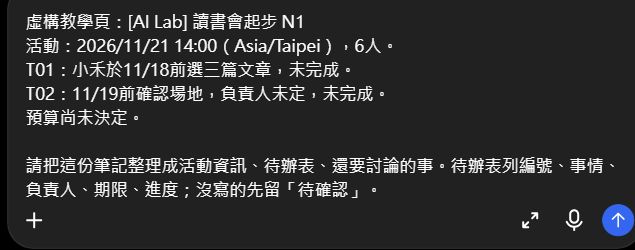
Paste the notes and request into AI to get a draft plan.
Read the task table: choosing articles and confirming the venue should be separate tasks.
Then send: “I will take responsibility for T02, confirming the venue. Update only that item.”
Copy the plan you like into your notes. Try the optional connection exercise to put it in an actual Notion page.
Practice material
Fictional teaching page: [AI Lab] Reading group start N1
Activity: 2026/11/21 14:00 (Asia/Taipei), 6 people.
T01: Xiaohe to choose three articles by 11/18, incomplete.
T02: confirm venue by 11/19, owner undecided, incomplete.
Budget undecided.
Request for AI
Organize these notes into activity details, an action table, and things to discuss. Use ID, task, owner, deadline, and progress as columns; mark missing details “to confirm.”
After copying, paste and send in a new AI conversation. Keep this lesson tab open so you can return for the next step.
This lesson’s notes, pasted into ChatGPT
In a new ChatGPT conversation, click the message box and press Ctrl+V (Mac: ⌘V). Check that both the material and request are present, then send with the upward arrow at the bottom right. Scroll inside the box to read long drafts.
View larger image ↗Need help with the controls? See the Lesson 1 example1. Open ChatGPT and find the message box
This is the signed-out ChatGPT home screen. The central “Ask ChatGPT” box accepts your message; “New chat” on the left starts a different topic.
Use “Copy material and request” above, switch to ChatGPT, click the message box and press Ctrl+V (Mac: ⌘V). Send with the upward arrow at the bottom right. The image uses Lesson 1; paste this lesson’s material instead.
This actual response preserves the November 18, 18:00 deadline and the unknown meeting location. Check these facts before using the response. The overlapping-squares icon at the bottom left copies it.
Keep the same conversation. Type what you want changed in the box below the response, then send. The unsent draft shown asks: “Make this a friendly, one-sentence reminder I can send to a friend.”
Real screenshots · 2026-10-29 · Traditional Chinese interface, with English instructions. The screen may vary by account or version. Examples contain fictional data.
Real screenshots · 2026-10-29 · Traditional Chinese interface, with English instructions. The screen may vary by account or version. Examples contain fictional data.
After trying: compare a possible result
Activity: 11/21 14:00, 6 people. T01: Xiaohe chooses three articles by 11/18, incomplete. T02: confirm venue by 11/19, incomplete; after your follow-up its owner is “me.” Still to discuss: venue and budget. This stays in the AI chat until you copy it into your notes.
Check these parts of your result
Choosing articles and confirming the venue are separate tasks.
After the follow-up, only T02’s owner becomes “me”; its deadline stays 11/19.
The budget remains to discuss; no amount is invented.
My result looks different. What now?
The wording does not have to match. Check for missing information first. If something is wrong, tell AI what it should be and ask for a correction, including the original material.
2. Now make it work for you
Try a different situation yourself
Use the same method with the situation below.
New fictional N2: sharing session 2026/12/02 15:00 (Asia/Taipei); T10 Aqing prepares slides by 12/01, in progress; T11 venue confirmation completed, venue Cloud Tower room A; participant count unknown. Produce the three-part draft using pasted text; do not write it back.
After trying: compare a possible result
Confirmed: 12/02 15:00, Cloud Tower room A, T11 completed. Action: T10 Aqing prepares slides by 12/01, in progress. Question: participant count. Status: draft, not written back.
3. Save your work and continue later
Save the AI response in your own notes and add one sentence about what you changed. You can also use the optional record below.
Write and download my result (optional)
This page does not save automatically. Download your filled-in records before closing or changing language. The lesson download does not include your own answers.
This is the public Notion listing. “Install plugin” leads to sign-in; no workspace or page access has been selected here. Follow your own screen and choose only the material for this exercise.
Real screenshots · 2026-10-29 · Traditional Chinese interface, with English instructions. The screen may vary by account or version. Examples contain fictional data.
Connect Notion through available Plugins or connected apps in your AI tool. Use the actual permission flow to allow your practice pages, and confirm you can open them yourself.
Insert the source-page link, select the Notion plugin, and send the request. Review the draft against your notes.
To save it to Notion, send a separate request: “Under [results parent link], create Reading group plan and write the complete draft we just reviewed.” This is the step that creates a page.
Open the returned page and check its title, tasks, and location. Without write access, copy the draft to your practice page yourself.
In your Notion practice area, create “AI practice – reading group,” paste this lesson’s fictional notes, and copy the page link. Create a separate blank parent page, “AI practice – results,” for the organized version.
Use Notion to read this page: [practice page link]. Organize activity details and an action table. Show the draft in chat first without changing the page.
After trying: compare a possible result
Reading produces a chat draft. An actual new Notion page exists only after you separately request writing and it succeeds.
Try a more involved task
Simulate ID-based updates and this-week filtering without creating duplicates.
Simulate a database table only: apply updates by ID and list incomplete items this week. Apply the same update again and give the total row count. Do not write to Notion.
After trying: compare a possible result
There are 3 rows after updating, with T01 completed. Only T02 is incomplete this week; owner remains to confirm. T03 is next week and is excluded. Repeating the update leaves 3 rows, without a second T01. This is a text simulation, not a created database.
Check your understanding (optional)What should I know first?
Choose the guided steps, a new practice, or a deeper challenge at your own pace.
Paste the six rows and request into AI to get a spending summary.
Use a calculator to check September 2100, October 2350, and an increase of 250.
Then send: “Change greater than 50 to at least 50. Which categories appear?” Watch the result change from 1 category to 3.
Try: “Add an October meals refund of -100 and recalculate.” October should become 2250. Save the explanation you find clearest.
Practice material
Fictional spending; purchase-month basis; all TWD. Positive values are spending; negatives are refunds.
ID,Month,Category,Amount
S01,2026-09,Meals,1200
S02,2026-09,Transport,400
S03,2026-09,Services,500
O01,2026-10,Meals,1350
O02,2026-10,Transport,450
O03,2026-10,Services,550
Request for AI
Using these six rows, calculate September and October totals, the increase, and percentage increase to 1 decimal. Show the change in each category. First find categories with an increase greater than 50.
Use “Copy material and request” above, switch to ChatGPT, click the message box and press Ctrl+V (Mac: ⌘V). Send with the upward arrow at the bottom right. The image uses Lesson 1; paste this lesson’s material instead.
This actual response preserves the November 18, 18:00 deadline and the unknown meeting location. Check these facts before using the response. The overlapping-squares icon at the bottom left copies it.
Keep the same conversation. Type what you want changed in the box below the response, then send. The unsent draft shown asks: “Make this a friendly, one-sentence reminder I can send to a friend.”
Real screenshots · 2026-10-29 · Traditional Chinese interface, with English instructions. The screen may vary by account or version. Examples contain fictional data.
After trying: compare a possible result
Original six rows: September 2100; October 2350; increase 250; 250÷2100×100≈11.9%. Categories: meals +150, transport +50, services +50. >50 selects meals only, 1 category; >=50 selects 3. Monthly totals do not change. After an October meals refund of -100: October 2250, increase 150, 150÷2100×100≈7.1%; net meals 1250, with all three categories +50.
Check these parts of your result
The original totals are 2100 and 2350: an increase of 250, about 11.9%.
Greater than 50 selects meals; at least 50 selects all three categories.
After the -100 refund, October is 2250: up 150, about 7.1%.
My result looks different. What now?
The wording does not have to match. Check for missing information first. If something is wrong, tell AI what it should be and ask for a correction, including the original material.
2. Now make it work for you
Try a different situation yourself
Use the same method with the situation below.
New fictional TWD data: September books 300, transport 200; October books 360, transport 240. Calculate monthly totals and percentage change, then compare category increases >40 and >=40.
After trying: compare a possible result
September 500; October 600; increase 100, 20.0%. Books +60, transport +40. >40 selects 1 category; >=40 selects 2. Thresholds do not change totals.
3. Save your work and continue later
Save the AI response in your own notes and add one sentence about what you changed. You can also use the optional record below.
Write and download my result (optional)
This page does not save automatically. Download your filled-in records before closing or changing language. The lesson download does not include your own answers.
Handle missing amounts, a zero baseline, and different currencies together.
Fictional category data: September courses 0 TWD, meals 100 TWD; October courses 200 TWD, meals amount missing, books 10 USD. No exchange rate; do not guess amounts.
List known subtotals by currency, unknowns, and valid differences. Can the courses percentage be calculated? Can a complete October total or overall percentage change be claimed?
After trying: compare a possible result
September known TWD total is 100. October known TWD subtotal is 200 with meals unknown; the separate 10 USD cannot be added directly. Courses increase by 200, but percentage change is undefined with a zero baseline. The complete October total and overall percentage change are unconfirmed; a known subtotal is not a complete total.
Threshold experiment (fixed calculations, no AI call)Download sample CSVCheck your understanding (optional)What should I know first?
Choose the guided steps, a new practice, or a deeper challenge at your own pace.
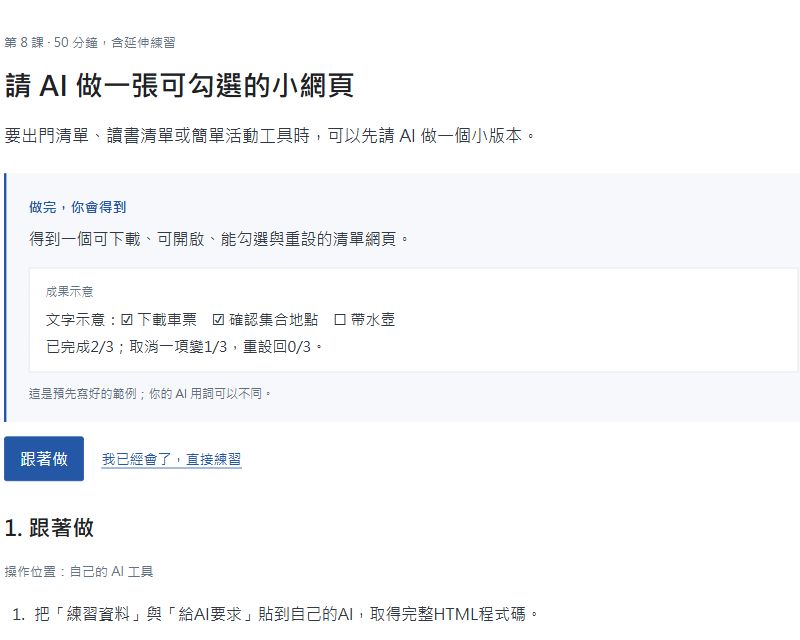
Paste the Practice material and Request for AI into your AI tool to get complete HTML code.
Copy the code into this page’s Complete HTML code field without the surrounding triple backticks. Select Update isolated preview.
In the preview, check two items, uncheck one, then reset. Counts should be 2/3, 1/3, and 0/3.
Select Download this HTML. Open the file from your browser downloads and check that reopening starts at 0/3.
In the same AI chat send: “Change only Bring a water bottle to Bring a notebook; give me complete updated HTML.” Paste the new code into the workspace, update the preview, and try again.
Practice material
Fictional checklist: title 'Before departure'; tasks in order: 'Download tickets', 'Confirm meeting location', 'Bring a water bottle'. No network or progress saving; reopening starts at 0/3.
Request for AI
Make a complete HTML checklist for these three tasks, with CSS and JavaScript in the same file and no external libraries or network. Each task can be checked. Show n/3 completed and a reset button. Support phones and keyboards. Do not save progress: reopening clears it to 0/3, and the page must say so. Give me the complete code without omissions.
Use “Copy material and request” above, switch to ChatGPT, click the message box and press Ctrl+V (Mac: ⌘V). Send with the upward arrow at the bottom right. The image uses Lesson 1; paste this lesson’s material instead.
This actual response preserves the November 18, 18:00 deadline and the unknown meeting location. Check these facts before using the response. The overlapping-squares icon at the bottom left copies it.
Keep the same conversation. Type what you want changed in the box below the response, then send. The unsent draft shown asks: “Make this a friendly, one-sentence reminder I can send to a friend.”
Real screenshots · 2026-10-29 · Traditional Chinese interface, with English instructions. The screen may vary by account or version. Examples contain fictional data.
After trying: compare a possible result
You get an HTML file that opens in your browser: three checkable tasks, a count that updates, and reset and reopening both return to 0/3. The new version replaces Bring a water bottle with Bring a notebook. Colors and layout may vary; what matters is that you can use it.
Check these parts of your result
Check two for 2/3, uncheck one for 1/3, reset for 0/3.
Reopening starts at 0/3; this exercise does not save progress.
The revised version changes only the third task to Bring a notebook; counting still works.
My result looks different. What now?
The wording does not have to match. Check for missing information first. If something is wrong, tell AI what it should be and ask for a correction, including the original material.
Where do I paste code and test it?Paste code above; test the result below
Paste the complete HTML in the large field, then select “Update isolated preview”. The webpage appears below. Click its checkboxes and check the count. This image uses the prepared reference fix to show the controls; your AI may produce a different layout.
Real screenshots · 2026-10-29 · Traditional Chinese interface, with English instructions. The screen may vary by account or version. Examples contain fictional data.
Code workspace
Paste the complete HTML produced by your AI. The preview blocks external connections and only runs here for testing. Download or publish separately to create a file or site. Use the fictional lesson data.
2. Now make it work for you
Try a different situation yourself
Use the same method with the situation below.
New fictional checklist: 'Reading preparation', with 'Choose an article' and 'Write three questions'. Write your own request for another HTML file without progress saving, save study.html, and test checking, unchecking, reset, and reopening.
After trying: compare a possible result
Initial 0/2; both checked 2/2; uncheck one 1/2; reset 0/2; reopen 0/2. Provide your own request and actual generated file. Task labels must not become explanatory paragraphs.
3. Save your work and continue later
Save the AI response in your own notes and add one sentence about what you changed. You can also use the optional record below.
Write and download my result (optional)
This page does not save automatically. Download your filled-in records before closing or changing language. The lesson download does not include your own answers.
Add search without changing the counting scope. First paste your completed full HTML. If you do not have a file, complete the guided task first. Confirm the current complete version in the same AI chat before submitting the new requirement; do not assume AI can see your local file.
Three fictional tasks: Download tickets, Confirm meeting location, Bring a notebook. Search changes visibility only; the count includes all three tasks. Reset clears every checkbox and the search.
Add text search to my complete HTML using these rules. Preserve existing features and no progress saving. List test expectations first, then provide the complete file.
After trying: compare a possible result
Check Download tickets and Bring a notebook: 2/3. Search 'tickets': only one item is visible, count remains 2/3. Uncheck it: 1/3. Clear search: Bring a notebook is still checked. Reset: all three visible and 0/3.
Check your understanding (optional)What should I know first?
Choose the guided steps, a new practice, or a deeper challenge at your own pace.
Select Download the broken checklist and Download the reference fix. Keep both originals.
Open the broken file in a browser. Check the first item, then the second: it incorrectly shows 0/3 and 1/3.
Open the broken file in a plain-text editor. Paste its complete code and the Request for AI into your AI tool.
Paste AI’s complete corrected HTML into this page’s Complete HTML code field and select Update isolated preview.
Try the first item alone, the first two, unchecking the first, and reset: expect 1/3, 2/3, 1/3, and 0/3. Select Download this HTML to keep the fix.
Open the retained reference fix separately, practicing a return to a working version.
Practice material
The fictional checklist has three tasks: Download tickets, Confirm meeting location, Bring a water bottle.
Broken file: downloads/curriculum/broken-checklist-en.html
Working comparison: downloads/curriculum/correct-checklist-en.html
Known issue: checking the first item does not increase the completed count.
Request for AI
I will paste broken HTML. Checking only the first item should show 1/3 but shows 0/3; checking the first two should show 2/3 but shows 1/3. Find the cause and fix only the counting issue. Keep the text, reset, and zero-on-reopen behavior. Give complete corrected code and briefly explain the change.
Use “Copy material and request” above, switch to ChatGPT, click the message box and press Ctrl+V (Mac: ⌘V). Send with the upward arrow at the bottom right. The image uses Lesson 1; paste this lesson’s material instead.
This actual response preserves the November 18, 18:00 deadline and the unknown meeting location. Check these facts before using the response. The overlapping-squares icon at the bottom left copies it.
Keep the same conversation. Type what you want changed in the box below the response, then send. The unsent draft shown asks: “Make this a friendly, one-sentence reminder I can send to a friend.”
Real screenshots · 2026-10-29 · Traditional Chinese interface, with English instructions. The screen may vary by account or version. Examples contain fictional data.
After trying: compare a possible result
The code starts counting from the second item, skipping the first. Remove .slice(1) from the counting expression so every checkbox is included. After repair: first item alone 1/3, first two 2/3, uncheck the first 1/3, reset 0/3. Always adding 1 would incorrectly show 1 when nothing is checked.
Check these parts of your result
The first item alone shows 1/3 and is no longer skipped.
First two checked: 2/3; uncheck the first: 1/3; reset: 0/3.
Do not always add 1; with nothing checked the count must be 0/3.
My result looks different. What now?
The wording does not have to match. Check for missing information first. If something is wrong, tell AI what it should be and ask for a correction, including the original material.
Where do I paste code and test it?Paste code above; test the result below
Paste the complete HTML in the large field, then select “Update isolated preview”. The webpage appears below. Click its checkboxes and check the count. This image uses the prepared reference fix to show the controls; your AI may produce a different layout.
Real screenshots · 2026-10-29 · Traditional Chinese interface, with English instructions. The screen may vary by account or version. Examples contain fictional data.
Code workspace
Paste the complete HTML produced by your AI. The preview blocks external connections and only runs here for testing. Download or publish separately to create a file or site. Use the fictional lesson data.
Download the broken file and open it in a browser to test. Open the same file in a text editor to read the code. Keep the original and save changes as a new file.
Download the fictional independent-task bug file downloads/curriculum/reset-bug-en.html and save a copy before testing. Its two reading tasks are Choose an article and Write three questions. It starts at 0/2; checking both gives 2/2. Reset clears the checks but still displays 2/2. This specific file defines updateCount(), but reset clears checks without calling it. Open this file in a text editor and send its complete contents with your reproduction report to AI. Request a minimal fix, save separately, and retest. Download correct-reset-en.html for comparison; do not apply the change to unrelated code with an unknown structure.
Reproduce: reopen→check both→reset. Expected unchecked and 0/2; actual unchecked and 2/2. Call updateCount() after clearing checks. Test 2→reset 0→check first 1. Do not merely hide the incorrect number.
3. Save your work and continue later
Save the AI response in your own notes and add one sentence about what you changed. You can also use the optional record below.
Write and download my result (optional)
This page does not save automatically. Download your filled-in records before closing or changing language. The lesson download does not include your own answers.
Download the fixed search/reset bug exercise search-reset-bug-en.html, preserve the original, and save a working copy. Reproduce the uncleared hidden item, send the full code to AI for a minimal fix, and run regression tests.
Fictional bug file: downloads/curriculum/search-reset-bug-en.html; reference fix: downloads/curriculum/correct-search-reset-en.html. Tasks in order: Download tickets, Confirm meeting location, Bring a water bottle. The count includes all items; search changes visibility only; reset must clear every checkbox and search. Intentional bug: reset clears only currently visible items before clearing search, leaving hidden checked items checked.
I will paste this broken HTML. Explain and reproduce: check the first and third items for 2/3; search tickets so only the first is visible, still 2/3; reset should show all items at 0/3, but actually shows all at 1/3 with the third still checked. Fix only reset so it traverses all checkboxes rather than just visible ones. Preserve search and counting scope. Return the complete fixed file, minimal difference, and regression steps.
Reproduction: check items 1 and 3→2/3; search tickets→one visible, still 2/3; reset→all visible but 1/3, with the third still checked. After the fix, the same sequence must reset to all visible and 0/3, clearing the hidden third item too. Then check the first two 2/3→uncheck first 1/3→reset 0/3. Search still changes only visibility, not counting scope. Change the reset clearing scope to all checkboxes; do not delete the third item or force the display to zero while leaving it checked. Preserve the original and reopen it if restoration is needed.
Check your understanding (optional)What should I know first?
Choose the guided steps, a new practice, or a deeper challenge at your own pace.
Paste the rules, five readings, and request into AI to get a trial table.
Check that 28 and 29 degrees each produce one request and notification; the missing reading produces no action.
Then send: “Change the rule to above 28 degrees and rerun these five events from an empty record.” See whether the 28-degree event stops triggering.
Compare the two versions: 2 requests first, then 1. This tests a rule; it does not connect to real equipment.
Practice material
Fictional temperature readings for text simulation; no equipment connection.
Rule: at 28°C or above, create one simulated air-conditioner start request and one notification. Below 28°C, do nothing. With no temperature, do nothing for now. If an event ID has already been processed, do not process it again.
In order: E01: 27°C; E02: 28°C; E03: 29°C; E04: no temperature; E02: 28°C (the same event sent again).
Request for AI
Try the rules below. For each row show temperature, whether it produces a simulated start request, whether it notifies, and one reason. Do not process a repeated event twice. Use text simulation only.
Use “Copy material and request” above, switch to ChatGPT, click the message box and press Ctrl+V (Mac: ⌘V). Send with the upward arrow at the bottom right. The image uses Lesson 1; paste this lesson’s material instead.
This actual response preserves the November 18, 18:00 deadline and the unknown meeting location. Check these facts before using the response. The overlapping-squares icon at the bottom left copies it.
Keep the same conversation. Type what you want changed in the box below the response, then send. The unsent draft shown asks: “Make this a friendly, one-sentence reminder I can send to a friend.”
Real screenshots · 2026-10-29 · Traditional Chinese interface, with English instructions. The screen may vary by account or version. Examples contain fictional data.
After trying: compare a possible result
E01 27: no activation, 0 requests/0 notifications. E02 28: simulated activation, 1/1. E03 29: simulated activation, 1/1. E04 missing: unknown, 0/0. Redelivered E02: skipped, 0 new requests/0 new notifications. Total 2 requests and 2 notifications. A fresh >28 batch activates only E03, total 1; restoring >=28 gives 2. Comparison and deduplication are rules; AI can help write and explain them. No actual device was controlled.
Check these parts of your result
At least 28 includes 28; above 28 does not.
Missing readings cause no action; repeated event IDs cause no new notification.
This is text simulation, not actual air-conditioner control.
My result looks different. What now?
The wording does not have to match. Check for missing information first. If something is wrong, tell AI what it should be and ask for a correction, including the original material.
2. Now make it work for you
Try a different situation yourself
Use the same method with the situation below.
New fictional rule and events: humidity >=70% produces one dehumidification reminder, simulation only; deduplicate by ID and mark missing as unknown. In order: H01,69; H02,70; H03,71; H04,missing; H02,70 redelivery. List each result independently.
After trying: compare a possible result
H01 no reminder; H02 one; H03 one; H04 unknown, none; duplicate H02 skipped. Total 2 reminders. 70 qualifies; missing is not 0%.
3. Save your work and continue later
Save the AI response in your own notes and add one sentence about what you changed. You can also use the optional record below.
Write and download my result (optional)
This page does not save automatically. Download your filled-in records before closing or changing language. The lesson download does not include your own answers.
Specify failure retries and cooldown state explicitly.
Fictional simulation, Asia/Taipei. Rules: >=28 creates a request; at most 2 attempts per ID including the first; only success marks the event processed and allows notification; persistent failure goes to a person. Other events within 5 minutes after a successful notification may create requests but no notification. R1 at 10:00, 28°C: first attempt fails, retry succeeds 10:01. R1 redelivered 10:02. R2 at 10:03, 29°C: succeeds. R3 at 10:07, 28°C: both attempts fail.
Simulate state only. List attempts, success/failure, deduplication, and notifications in order. Do not retry any external service.
After trying: compare a possible result
R1: 2 attempts, succeeds and notifies once at 10:01; redelivery 10:02 skipped. R2: 1 successful attempt, no notification because only 2 minutes have passed. R3: 2 failed attempts, then stop and refer to a person; no success state or success notification. Total 5 attempts, 2 successful events, 1 notification. No unlimited retries.
Rule experiment (simulated alert; no device control)Check your understanding (optional)What should I know first?
Choose the guided steps, a new practice, or a deeper challenge at your own pace.
When a notice is too long, too formal, or needs another language, ask AI to change how it is written.
What you will make
Get short Chinese and English notices and adjust their tone for friends.
Example result
11/21 09:00一起參加「雲岸共學」,每人300 TWD。
Join 雲岸共學 on 11/21 at 09:00; 300 TWD per person.
(Excerpt; the full notice also includes the reply deadline and lunch details.)
This is a prepared example. Your AI may use different wording.
Paste the activity details and request into AI and read both notices.
Then send: “Make the Chinese sound like a message to a friend, and make the English shorter.”
Check that the dates and 300 TWD per person did not change, and lunch still costs extra.
Save the versions you like. For unfamiliar English, ask: “Explain this sentence in Chinese.”
Practice material
Fictional notice L1: 雲岸共學 takes place on 2026/11/21 at 09:00 (Asia/Taipei), at 雲樓A室; 300 TWD per person. Reply whether attending by 2026/11/18 18:00 (Asia/Taipei). Lunch costs extra; its price is undecided. Neither activity nor venue has an approved English name.
Request for AI
Write short Chinese and English notices from these details. Make the time, place, price, and reply deadline easy to find. Keep activity and venue names in their original form and keep the extra lunch cost.
Use “Copy material and request” above, switch to ChatGPT, click the message box and press Ctrl+V (Mac: ⌘V). Send with the upward arrow at the bottom right. The image uses Lesson 1; paste this lesson’s material instead.
This actual response preserves the November 18, 18:00 deadline and the unknown meeting location. Check these facts before using the response. The overlapping-squares icon at the bottom left copies it.
Keep the same conversation. Type what you want changed in the box below the response, then send. The unsent draft shown asks: “Make this a friendly, one-sentence reminder I can send to a friend.”
Real screenshots · 2026-10-29 · Traditional Chinese interface, with English instructions. The screen may vary by account or version. Examples contain fictional data.
After trying: compare a possible result
Chinese: 『雲岸共學』11/21 09:00於雲樓A室舉行,每人300 TWD;請於11/18 18:00前回覆。日期皆2026年,時間皆Asia/Taipei;午餐另計、價格待確認。 English: Join 雲岸共學 at 雲樓A室 on 2026/11/21 at 09:00 (Asia/Taipei), 300 TWD per person. Reply by 2026/11/18 18:00 (Asia/Taipei). Lunch costs extra; the price is unconfirmed. All six fields agree, with no invented official names.
Check these parts of your result
Both versions keep the same activity date, reply deadline, and 300 TWD per-person price.
Lunch remains extra with its price unconfirmed, not included.
Keep original activity and venue names and Asia/Taipei in the full notice.
My result looks different. What now?
The wording does not have to match. Check for missing information first. If something is wrong, tell AI what it should be and ask for a correction, including the original material.
2. Now make it work for you
Try a different situation yourself
Use the same method with the situation below.
New fictional L2: 紙上散步 at Room B on 2026/12/03 15:00 (Asia/Taipei); free; register by 12/01 12:00 (Asia/Taipei); materials provision unknown. No official English activity name. Write both language versions and a fact comparison independently.
After trying: compare a possible result
Chinese preserves 12/03 15:00, B室, free admission, 12/01 12:00 registration deadline, and unknown materials. English example: 紙上散步 is at Room B on 2026/12/03 at 15:00 (Asia/Taipei), free of charge. Register by 2026/12/01 12:00 (Asia/Taipei). Materials provision is unconfirmed. Free admission does not imply included materials.
3. Save your work and continue later
Save the AI response in your own notes and add one sentence about what you changed. You can also use the optional record below.
Write and download my result (optional)
This page does not save automatically. Download your filled-in records before closing or changing language. The lesson download does not include your own answers.
Make a two-sentence spoken script while retaining limitations.
Fictional L3: online exchange 2026/12/10 19:00 (Asia/Taipei); register by 12/08 17:00 (Asia/Taipei); 200 TWD per person; access link not yet provided.
Write two sentences each in Chinese and English: activity and price first, then deadline and missing link. Do not invent a URL.
After trying: compare a possible result
Chinese: 12月10日19:00有線上交流,每人200 TWD。請於12月8日17:00前報名,參加連結待提供;以上日期皆2026年,時間皆Asia/Taipei。 English: The online exchange is on 2026/12/10 at 19:00 (Asia/Taipei), at 200 TWD per person. Register by 2026/12/08 17:00 (Asia/Taipei); the access link has not been provided. Wording can vary; time zone and missing-link status cannot be dropped.
Check your understanding (optional)What should I know first?
Choose the guided steps, a new practice, or a deeper challenge at your own pace.
Choose something you will do next week: prepare a meal with friends, organize books, or plan practice. You can also use the sample below.
Paste your need and data into AI to get a first version.
Change one thing after reading it: add people, use a table, or make it shorter for a phone.
Walk through the real situation with your result. What is still missing? Ask AI to improve it and save it somewhere you can find again.
Practice material
Fictional example: four people having dinner at home on Saturday.
Aim to eat at 18:30. Make tomato pasta, salad, and fruit.
Pasta and olive oil are already at home; other ingredients need buying.
Need: a shopping list and a simple preparation order. No budget calculation needed.
Request for AI
Use the needs and data below to make a simple, usable first version as a text checklist. No website needed. Then ask what I most want to adjust.
Use “Copy material and request” above, switch to ChatGPT, click the message box and press Ctrl+V (Mac: ⌘V). Send with the upward arrow at the bottom right. The image uses Lesson 1; paste this lesson’s material instead.
This actual response preserves the November 18, 18:00 deadline and the unknown meeting location. Check these facts before using the response. The overlapping-squares icon at the bottom left copies it.
Keep the same conversation. Type what you want changed in the box below the response, then send. The unsent draft shown asks: “Make this a friendly, one-sentence reminder I can send to a friend.”
Real screenshots · 2026-10-29 · Traditional Chinese interface, with English instructions. The screen may vary by account or version. Examples contain fictional data.
After trying: compare a possible result
A first version can have “Buy” and “Prepare” sections. Buy tomatoes, salad vegetables, fruit, and suggested extras; list the pasta and olive oil separately as already available. Wash and chop produce, prepare sauce, cook pasta, then mix the salad. Any quantities added by AI are suggestions you can adjust to appetites.
Check these parts of your result
The result contains usable content, not only advice on how to plan.
Pasta and olive oil are already available; they need not be listed as required purchases.
Relevant details change with new conditions; adjust AI-suggested quantities to your needs.
My result looks different. What now?
The wording does not have to match. Check for missing information first. If something is wrong, tell AI what it should be and ask for a correction, including the original material.
2. Now make it work for you
Try a different situation yourself
Use the same method with the situation below.
Use your own small need, such as a weekly reading plan or a packing list. Provide three necessary details, ask AI for a first version, then change one condition. Do not paste private or confidential information.
After trying: compare a possible result
There is no single correct answer. If you can explain which step it saves and use it for one small action, you have a useful starting point.
3. Save your work and continue later
Save the AI response in your own notes and add one sentence about what you changed. You can also use the optional record below.
Write and download my result (optional)
This page does not save automatically. Download your filled-in records before closing or changing language. The lesson download does not include your own answers.
Use the work you just made. For the dinner example, change to six people, including one who avoids dairy.
Update my work for this new condition. Say what changed, then give the complete new version. Add a short explanation for a first-time user.
After trying: compare a possible result
For dinner, adjust suggested quantities for six and offer dairy separately or use dairy-free alternatives. Keep the original. Ask a companion to read the new instructions and try starting; improve any confusing parts.
Check your understanding (optional)What should I know first?
Choose the guided steps, a new practice, or a deeper challenge at your own pace.
After completing an exercise, try it again with different material. Come back and pick a lesson when you have a new task.
After organizing text → try Gmail, Drive, or Notion.
After comparing months → repeat with your own anonymized data.
After building a webpage → change one feature, then learn to fix errors.
This page does not save automatically. Download your filled-in records before closing or changing language. The lesson download does not include your own answers.

 View larger image ↗
 View larger image ↗
 View larger image ↗
 View larger image ↗